Understanding how Google crawls and indexes websites is the first step to getting found in search. If Google cannot reach a page, or chooses not to store it, that page cannot rank. This guide explains both processes in plain English and shows you how to fix common problems.
First, you will see how Google discovers pages. Next, you will learn which tools control crawling and which control indexing. Finally, you will get a checklist and a table of common Search Console errors.
Disclosure: this article contains affiliate links, including links to Fiverr and Hostinger. If you buy through them, I may earn a commission at no extra cost to you. Read my affiliate disclosure for details.
How Google Crawls and Indexes Websites: The Short Version
Google explains its process in its guide to how Search works. In simple terms, a page moves through four stages before anyone sees it in the results.
- Discover: Google finds a URL through links or a sitemap.
- Crawl: Googlebot, Google’s crawler, downloads the page.
- Index: Google analyzes the page and stores it in its index.
- Serve: when someone searches, Google picks the best matching pages from the index.
Google does not promise to crawl or index every page it finds. Therefore, your goal is to make good pages easy to reach and easy to understand.
What Is Crawling?
Crawling is the discovery step. Googlebot visits a URL, downloads the text, images and code, and follows the links it finds. Google uses software to decide which sites to visit, how often and how many pages to fetch. It also slows down when your server struggles, so a slow or unstable site can be crawled less.
A crawled page is not always an indexed page. Crawling only means Google looked at it.
What Is Indexing?
Indexing is the storage step. Google reads the content of the page, including its text, headings, images and video, and decides what the page is about. It also groups similar pages and picks one preferred version, called the canonical URL. Only indexed pages can appear in search results.
A page may stay out of the index for several reasons: a noindex tag, duplicate content, low-value content or a technical problem. For example, a thin page that repeats other pages on your site often gets skipped.
How Google Finds New Pages
- Internal links: a link from a page Google already knows is the most reliable path to a new page.
- External links: links from other sites can lead Googlebot to you.
- XML sitemaps: a sitemap lists the URLs you want crawled. Read Google’s sitemap overview to build one correctly.
- Search Console: the URL Inspection tool lets you test a single URL and request indexing.
WordPress users can get a sitemap automatically from plugins such as Yoast SEO. Then submit the sitemap address in Google Search Console.
How Google Handles JavaScript
Google can render pages with JavaScript and index the result. However, rendering adds an extra step, so content that appears only after scripts run may be processed later. As a safe habit, keep important text and links in the HTML that loads first. Google’s JavaScript SEO basics covers the details.
Crawling vs Indexing: Which Tool Controls What
Beginners often mix up these controls. The diagram below shows what each tool does.
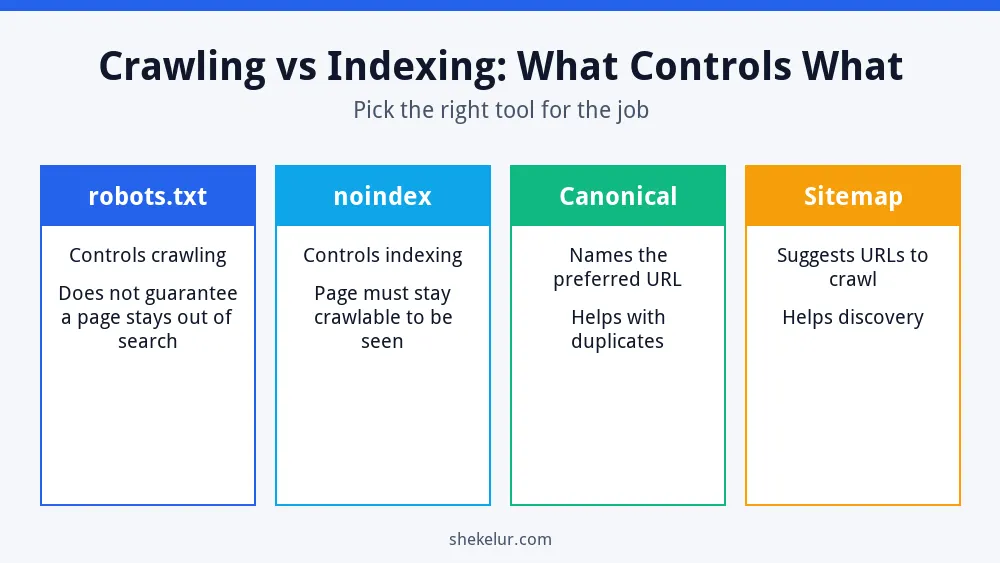
- robots.txt tells crawlers which areas they should not request. It controls crawling, not indexing. Read the robots.txt introduction before you edit it.
- noindex tells Google not to show a page in results. Learn how in the guide to blocking indexing.
- Canonical tags point to your preferred version when several URLs show similar content.
- Sitemaps suggest URLs to crawl, but they are hints, not commands.
There is one common trap. If robots.txt blocks a page, Google cannot read the noindex tag on it. As a result, the URL may still appear in results without a description if other sites link to it. To keep a page out of search, let Google crawl it and use noindex.
Mobile-First Indexing
Google mainly uses the mobile version of a page for indexing and ranking. So the mobile page should contain the same main content, headings, structured data and links as the desktop page. Google’s guide to mobile-first indexing lists the best practices.
Duplicate Content and Canonical URLs
Many sites create duplicate URLs without noticing, for example with tracking parameters, print versions or http and https versions. Google groups these and chooses one canonical URL. You can guide that choice with redirects, internal links and canonical tags. See Google’s advice on consolidating duplicate URLs.
Crawl Budget: Should You Worry?
Crawl budget is the number of URLs Google is able and willing to crawl on your site. For most small and medium sites, it is not a concern. Google says its crawl budget guide is mainly for very large sites, such as those with over a million pages, or over ten thousand pages that change daily. If your site is smaller, focus on quality and clean links instead.
Common Indexing Problems and How to Fix Them
The Page indexing report in Search Console shows why URLs are not indexed. Here are the statuses beginners see most.
| Status | What it usually means | What to try |
|---|---|---|
| Discovered, currently not indexed | Google knows the URL but has not crawled it yet | Add internal links, check server speed and wait |
| Crawled, currently not indexed | Google read the page but chose not to store it | Improve originality, depth and usefulness |
| Blocked by robots.txt | A robots.txt rule stops crawling | Edit the rule if the block is a mistake |
| Excluded by noindex tag | The page tells Google not to index it | Remove noindex if the page should rank |
| Duplicate, Google chose a different canonical | Google prefers another URL | Review canonical tags and internal links |
| Not found (404) | The URL no longer exists | Restore the page or redirect it to a close match |
How to Check If Google Has Indexed a Page
- Open Google Search Console and paste the URL into the inspection bar at the top.
- Read the result. It shows whether the URL is on Google and when it was last crawled.
- Use the live test if you changed the page, then request indexing.
- As a rough check, search for the exact page title in Google, but treat Search Console as the reliable source.
How Long Does Crawling and Indexing Take?
It varies. Some new pages appear within days, while others take weeks. Strong internal links, a healthy server and useful content all help. However, requesting indexing again and again does not speed things up, so fix the underlying cause instead.
A Simple Checklist to Help Google Index Your Site
- Link every important page from at least one other page.
- Submit an XML sitemap in Search Console.
- Keep pages fast and choose reliable web hosting.
- Publish original, helpful content with a clear purpose.
- Check that mobile and desktop pages show the same main content.
- Remove accidental noindex tags and robots.txt blocks.
- Fix broken links and redirect chains.
- Review the Page indexing report every month.
For more on this topic, read my guide to technical SEO basics, the SEO guide for beginners and the walkthrough on on-page SEO for new websites.
Final Thoughts on How Google Crawls and Indexes Websites
Crawling finds your pages, and indexing stores them. When you understand how Google crawls and indexes websites, indexing problems become much easier to diagnose. Start with Search Console, fix one issue at a time and keep your content genuinely useful.
Your Next Step: Check Your Own Site
Open Search Console today and review your Page indexing report. If it shows errors you do not understand, or you simply lack the time, you can compare independent technical SEO freelancers on Fiverr. Read their reviews, ask what they will audit and avoid anyone who guarantees rankings.
Frequently Asked Questions
What Is the Difference Between Crawling and Indexing?
Crawling means Google fetches and reads a page. Indexing means Google stores that page so it can appear in search results. A page can be crawled and still not be indexed.
How Do I Get Google to Crawl My Site Faster?
Submit a sitemap, link new pages from existing ones and keep your server fast. You can also request indexing for important URLs in Search Console.
Why Is My Page Not Indexed?
Common causes include a noindex tag, a robots.txt block, duplicate content, thin content or a very new page. Check the exact status in the Page indexing report.
Does Blocking a Page in robots.txt Remove It From Google?
Not reliably. Robots.txt controls crawling, so Google may still list the URL if other sites link to it. Use noindex on a crawlable page instead.
Do I Need to Submit a Sitemap?
It is not required, but it helps Google discover pages, especially on new sites or sites with weak internal linking.