The best AI tools for higher CTR thumbnails help you create and test more options, faster. However, no tool can promise more clicks. A thumbnail works when it is clear, honest and matches the title and the video. This guide shows how to use AI at each step, from idea to testing, and gives a checklist you can reuse.
CTR means click-through rate: the share of people who click after seeing your thumbnail. You can find it in the analytics of YouTube Studio. Tools and YouTube features change often, so I checked recent sources in November 2026 and kept the claims general.
Disclosure: this article contains an affiliate link to Fiverr. If you buy through it, I may earn a commission at no extra cost to you. Read my affiliate disclosure for details.
A Simple Process for Better Thumbnails
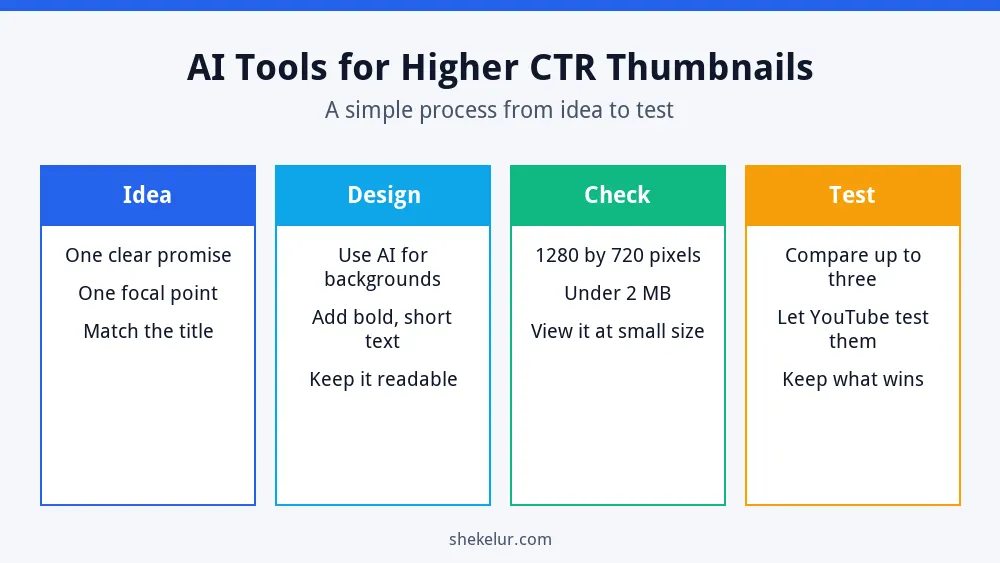
- Idea: choose one clear promise and one focal point that match your title.
- Design: use AI for backgrounds or variations, then add short, bold text.
- Check: confirm the size, file type and how it looks at a small size.
- Test: compare options and keep the one that performs best.
How AI Tools Can Help
AI Assistants for Ideas and Text
Chat assistants can suggest thumbnail concepts, short text options and title pairings. Give them your video topic, audience and the promise of the video, then ask for five distinct ideas. For prompt tips, see my ChatGPT guide for beginners. You still decide which idea is accurate and honest.
AI Image Generators for Backgrounds
Image generators can create backgrounds, objects and moods that are hard to photograph. Check each tool’s license and whether free images are public. My guide to AI image generators for beginners covers the main options and prompt tips.
Design Tools for Layout
A design tool puts it all together. Canva’s YouTube thumbnail maker offers templates at the right size, and its free plan has limits on premium assets and AI features. For other options, see my guide to graphic design software for beginners.
YouTube Thumbnail Checklist
| Item | What to check |
|---|---|
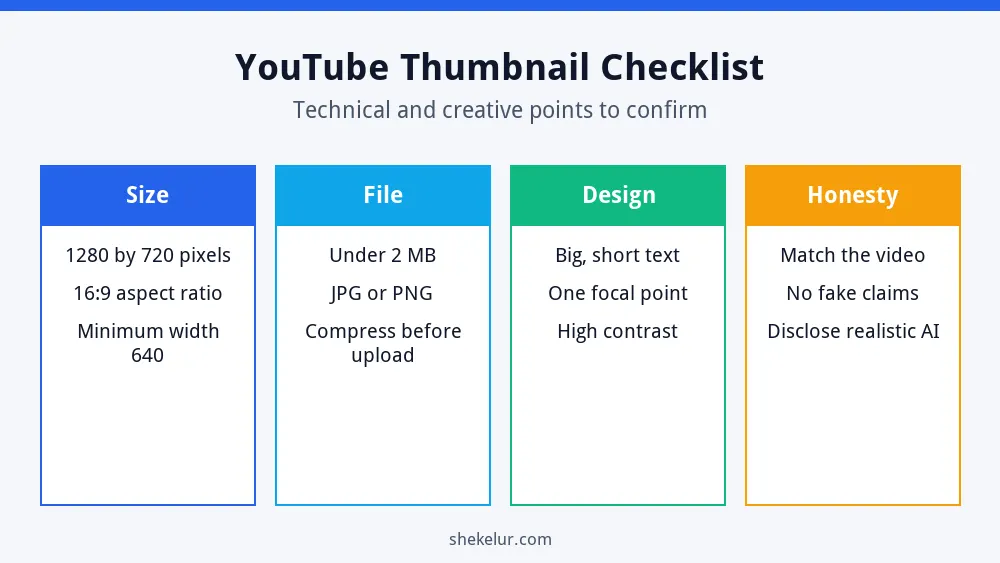
| Size | 1280 by 720 pixels, 16:9, with a minimum width of 640 pixels |
| File | Under 2 MB; JPG, PNG, GIF or BMP are accepted |
| Text | Short, bold and readable on a phone screen |
| Focus | One main subject, with high contrast |
| Honesty | Matches the title and the video |
These specs come from YouTube guidance as repeated by several tutorial sites, so confirm them in YouTube Studio when you upload. If a file is too large, compress it before you upload.
Test Your Thumbnails
YouTube offers a built-in A/B testing feature in YouTube Studio, which you may know as Test and Compare. It lets eligible creators compare up to three thumbnails, titles or title and thumbnail combinations on one video. Eligibility and the exact interface can change, so check your Studio account. When you test, make the options clearly different, because very similar thumbnails can be hard to judge.
- Change one big idea at a time, such as the focal point or the text.
- Let the test run long enough to gather enough views.
- Look at watch time and viewer satisfaction as well as clicks.
- Keep notes so you can learn what works for your audience.
Stay Honest and Within the Rules
- Do not make claims in the thumbnail that the video does not deliver.
- Avoid fake play buttons, fake screenshots and misleading arrows.
- Do not use real people’s faces or logos without permission.
- Follow YouTube’s policies on misleading metadata and on realistic AI-altered content.
- Make sure the image is accessible, with readable contrast.
Misleading thumbnails can bring clicks, but they also bring quick exits and policy problems. For voice and video rules, see my guides to free AI voice generators for YouTube and AI video generators for faceless YouTube channels.
Common Mistakes
- Packing too much text into the thumbnail.
- Using a busy AI background that hides the subject.
- Copying another channel’s style too closely.
- Skipping a mobile-size preview.
- Changing everything at once, so you cannot tell what worked.
- Ignoring the title, which works together with the thumbnail.
Final Thoughts on AI Tools for Higher CTR Thumbnails
The best AI tools for higher CTR thumbnails speed up ideas and variations, but your judgment decides what is clear and honest. Create a few distinct options, check the specs, test them and keep what your audience responds to.
Your Next Step: Make Three Options
Pick one video and make three clearly different thumbnails using the checklist above. If you would rather have a designer polish them, you can compare independent thumbnail designers on Fiverr. Check their portfolios and reviews, and agree the usage rights and the number of revisions.
Frequently Asked Questions
What Size Should a YouTube Thumbnail Be?
The recommended size is 1280 by 720 pixels with a 16:9 aspect ratio, and the file should be under 2 MB.
Can AI Make My Thumbnails Get More Clicks?
AI can help you create more options quickly, but results depend on your topic, audience and clarity. Test your options to find out.
Does YouTube Let You Test Thumbnails?
Yes, YouTube Studio has an A/B testing feature, also known as Test and Compare, for eligible channels. Check your account for access.
Is It Okay to Use AI Images in Thumbnails?
Usually yes, if the tool’s license allows it and the thumbnail is honest. Follow YouTube’s rules on misleading and realistic AI-altered content.
How Often Should I Change a Thumbnail?
Consider changing it only when you have a clear reason, such as a failed test or a better idea. Constant changes make results hard to read.