Choosing graphic design software for beginners can feel confusing because there are so many options. The good news is that you can start without paying anything. This guide explains the main types of design tools, compares six beginner-friendly picks and gives you a 30-day plan to build real skills.
Prices and free plans change often, so I checked the official pages in October 2026. Always confirm the current limits before you rely on a plan.
Disclosure: this article contains an affiliate link. If you buy through it, I may earn a commission at no extra cost to you. Read my affiliate disclosure for details.
What Is Graphic Design Software?
Graphic design software lets you create visuals such as social media posts, logos, flyers, presentations and website graphics. Some tools use ready-made templates. Others give you a blank canvas and precise controls. Your goal decides the right type.
Graphic Design Software for Beginners: The Four Main Types
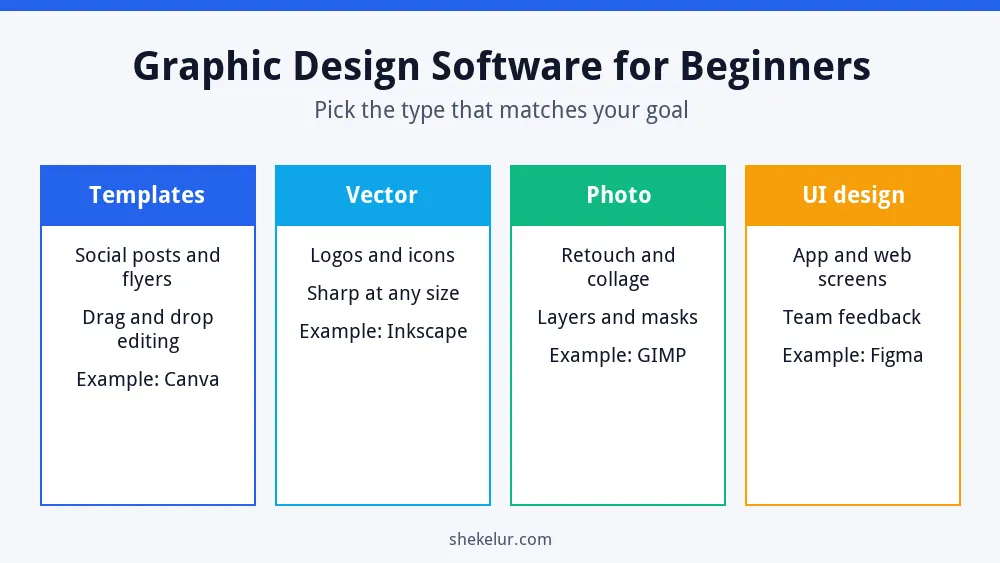
- Template tools: fast and simple, ideal for social posts, flyers and slides.
- Vector tools: best for logos and icons because they stay sharp at any size.
- Photo editors: best for retouching, collages and layers.
- UI design tools: built for app and website screens and team feedback.
What Beginners Should Look For
- A gentle learning curve and clear tutorials.
- A useful free plan or a free trial.
- Easy export to PNG, JPG, WebP and PDF.
- Templates and a decent font library.
- A tool that runs on your computer, tablet or browser.
- No watermark on exports you plan to use commercially.
Six Beginner-Friendly Options
Canva
Canva is the easiest place to start. You drag and drop elements onto templates for posts, flyers and presentations. The free plan is generous, but premium content, storage and AI usage have limits, and those limits shift from time to time.
Adobe Express
Adobe Express is another template-based tool for quick content. According to Adobe’s pricing page, the free plan includes templates, a limited set of assets, a monthly allowance of generative credits and 5 GB of storage.
Affinity by Canva
Affinity combines vector, photo and layout tools in one professional app. At the time of writing, it is free for individuals on Mac and Windows, and you need a free Canva account to activate it. Its optional AI features require a paid Canva plan. It is more powerful than template tools, so expect a steeper learning curve.
GIMP
GIMP is a free, open-source photo editor with layers, masks and many filters. It takes time to learn, but it costs nothing and works for serious photo work.
Inkscape
Inkscape is a free, open-source vector editor. Choose it for logos, icons and illustrations that must stay crisp at any size.
Figma
Figma is popular for app and website design and for working with others in real time. It has a free Starter plan with limits on files, so check the details before you plan a big project.
| Tool | Best for | Cost note | Learning curve |
|---|---|---|---|
| Canva | Social posts, flyers, slides | Free plan with limits | Easy |
| Adobe Express | Quick social content | Free plan with limits | Easy |
| Affinity by Canva | Vector, photo and layout | Free for individuals | Moderate |
| GIMP | Photo editing | Free, open source | Moderate to hard |
| Inkscape | Logos and icons | Free, open source | Moderate |
| Figma | App and web screens | Free Starter plan with limits | Moderate |
How to Choose the Right Tool
- Need quick social posts? Start with Canva or Adobe Express.
- Want to design logos? Try Inkscape or Affinity.
- Editing photos? Try GIMP or Affinity.
- Designing app screens? Learn Figma.
- Unsure? Test two tools on the same small project and keep the one that feels natural.
Your First 30 Days in Graphic Design
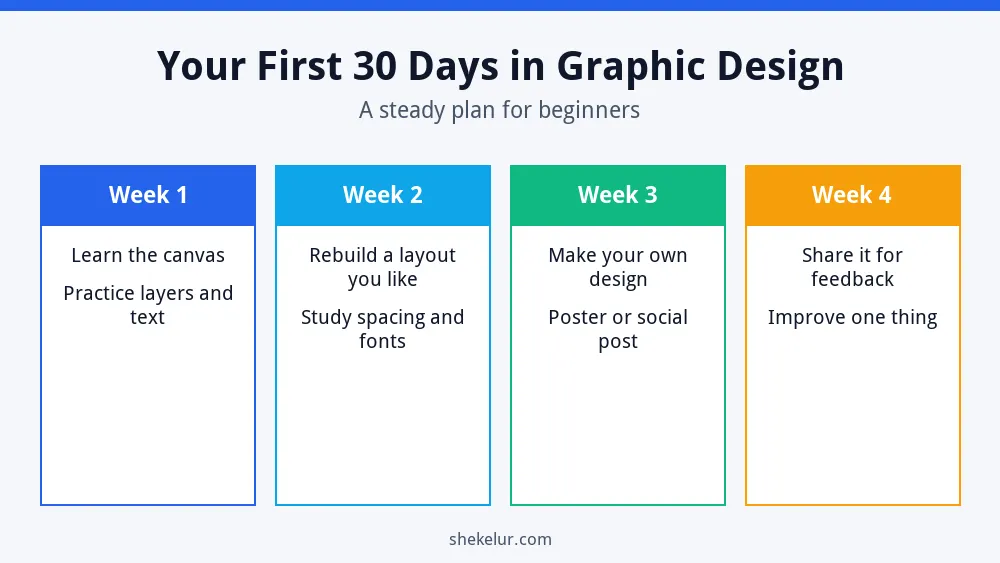
- Week 1: learn the canvas, layers, text and shapes.
- Week 2: rebuild a layout you like to study spacing and fonts.
- Week 3: make your own poster or social post from scratch.
- Week 4: share your work, ask for feedback and improve one thing.
Design Basics Every Beginner Should Learn
- Hierarchy: make the most important element the largest or boldest.
- Contrast: keep text easy to read against its background.
- Alignment: line elements up so the layout feels tidy.
- White space: leave breathing room instead of filling every gap.
- Fonts: use no more than two typefaces.
- Color: choose a small palette and repeat it.
Export Images the Right Way for Your Website
If you publish designs online, export them at the size you need and compress them. Smaller files help your pages load faster, which supports good user experience. WebP or JPEG usually works well for photos. Add alt text to each image, too. For more speed tips, read my guide to technical SEO basics.
Common Beginner Mistakes
- Using too many fonts and colors.
- Stretching or distorting images.
- Choosing a complex tool for a simple job.
- Using copyrighted images without permission.
- Skipping practice projects.
- Comparing your first work to a professional’s.
Final Thoughts on Graphic Design Software for Beginners
The best graphic design software for beginners is the one you will open every week. Start with a simple tool, practice small projects and move to more powerful software when you need it. Designs also help you grow, for example as lead magnets in my guide to building an email list fast. For more free tools, see my list of free marketing tools for beginners.
Your Next Step: Make One Design Today
Pick one tool and create a simple social post today. If you need a polished logo, banner or brand kit and prefer to hire help, you can compare independent designers on Fiverr. Check portfolios and reviews, agree on the deliverables and confirm who owns the final files.
Frequently Asked Questions
What Is the Easiest Graphic Design Software for Beginners?
Template-based tools such as Canva and Adobe Express are usually the easiest because you start from a ready-made layout.
Can I Learn Graphic Design for Free?
Yes. Free software, free tutorials and regular practice are enough to build solid basic skills.
Do I Need an Expensive Computer?
Not for browser-based tools. Desktop apps for photos and vectors run better on a modern computer, so check each tool’s requirements.
Can I Use Free Designs for My Business?
Often yes, but read the license for every template, font and image. Rules differ between free and paid content.
When Should I Hire a Designer?
Hire help when you need a logo, brand identity or a polished design quickly, or when design takes time away from your main work.
