The best productivity apps are not the ones with the most features. They are the ones you open every day. This guide covers seven widely used apps for tasks, notes, boards and time, explains who each one suits and warns you about the limits to check before you commit.
Plans and prices change often, so I checked the official pages in October 2026. Always confirm the current free-plan limits on the vendor’s site before you rely on them.
Disclosure: this article contains an affiliate link. If you buy through it, I may earn a commission at no extra cost to you. Read my affiliate disclosure for details.
How These Productivity Apps Were Chosen
- Free option: you can start without paying.
- Easy to start: a beginner can set it up in an evening.
- Works across devices: phone, tablet and computer.
- Clear purpose: each app does one job well.
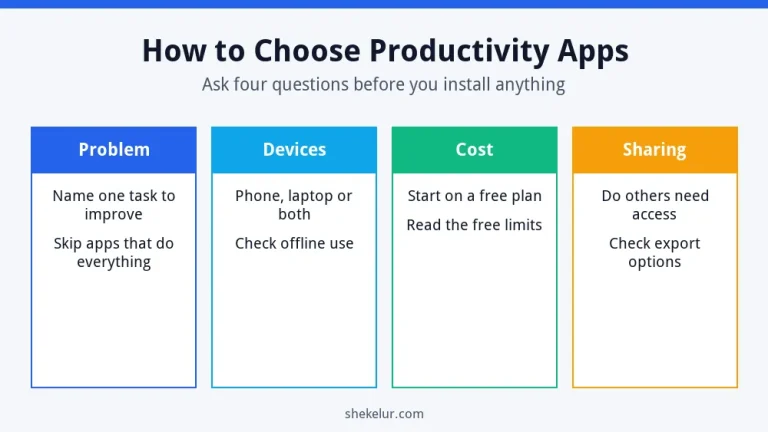
If you are unsure how to compare apps, read my guide on how to choose productivity apps for daily life first.
Best Productivity Apps by Job
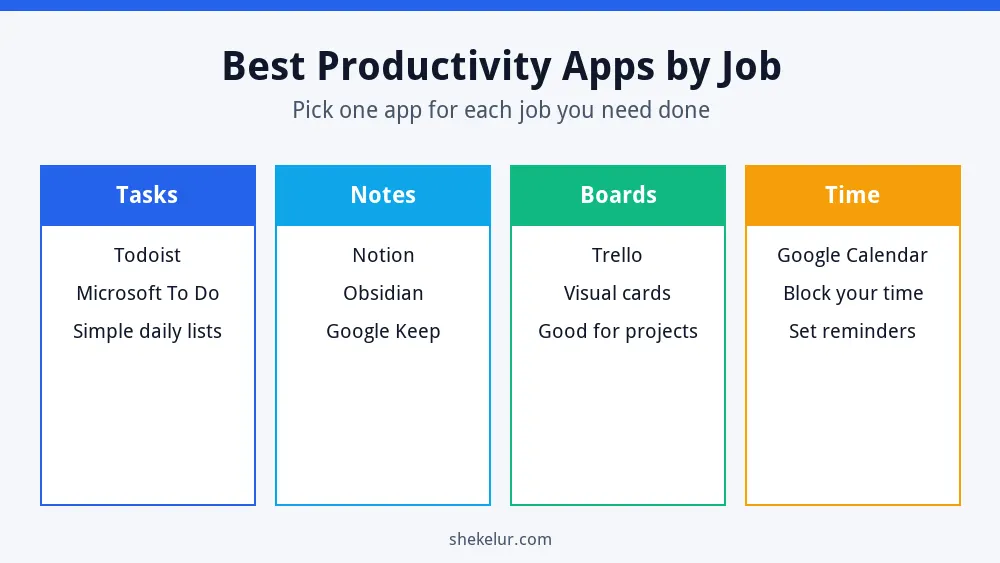
Most people need only one app per job. Pick from the groups below.
1. Todoist: Best for Simple Task Lists
Todoist is a focused to-do app with due dates, labels, recurring tasks and quick entry. It suits people who want a clean list rather than a big workspace. The free plan limits things such as the number of projects and some features, so check the current allowance.
2. Notion: Best for Notes, Docs and Light Project Tracking
Notion combines pages, databases and boards in one workspace. It is flexible, which is both its strength and its trap, because beginners can spend hours building systems. Its free plan is generous for individuals, though it has limits such as file size, and team use has more restrictions.
3. Trello: Best for Visual Boards
Trello organizes work as cards on Kanban boards. It is easy to learn and works well for content calendars, simple projects and small teams. The free plan limits items such as the number of boards and automation runs, so confirm what you need.
4. Google Calendar: Best for Time Blocking
Google Calendar is free with a Google account. Use it to block time for important tasks, not just meetings. A task that has a time slot is more likely to happen than one that sits on a list.
5. Microsoft To Do: Best for Everyday Lists
Microsoft To Do is a simple list app that works with a Microsoft account. It is a good fit if you already use Outlook or other Microsoft tools. It keeps things light, with lists, due dates and a daily planning view.
6. Google Keep: Best for Quick Notes
Google Keep is a fast notepad for ideas, shopping lists and reminders. It is not meant for big projects, but it removes friction when you only need to capture a thought.
7. Obsidian: Best for Private, Linked Notes
Obsidian stores notes as plain files on your device and lets you link them together. It rewards people who enjoy building a personal knowledge base. It has a learning curve, so it is not the best first choice for a complete beginner.
Quick Comparison
| App | Best for | Watch out for |
|---|---|---|
| Todoist | Task lists and recurring tasks | Free plan limits on projects and features |
| Notion | Notes, docs and light projects | Easy to over-build |
| Trello | Visual boards | Free plan limits on boards and automations |
| Google Calendar | Time blocking | Needs a Google account |
| Microsoft To Do | Simple everyday lists | Basic features |
| Google Keep | Fast notes | Not for large projects |
| Obsidian | Private, linked notes | Learning curve |
A Simple Productivity Setup That Works
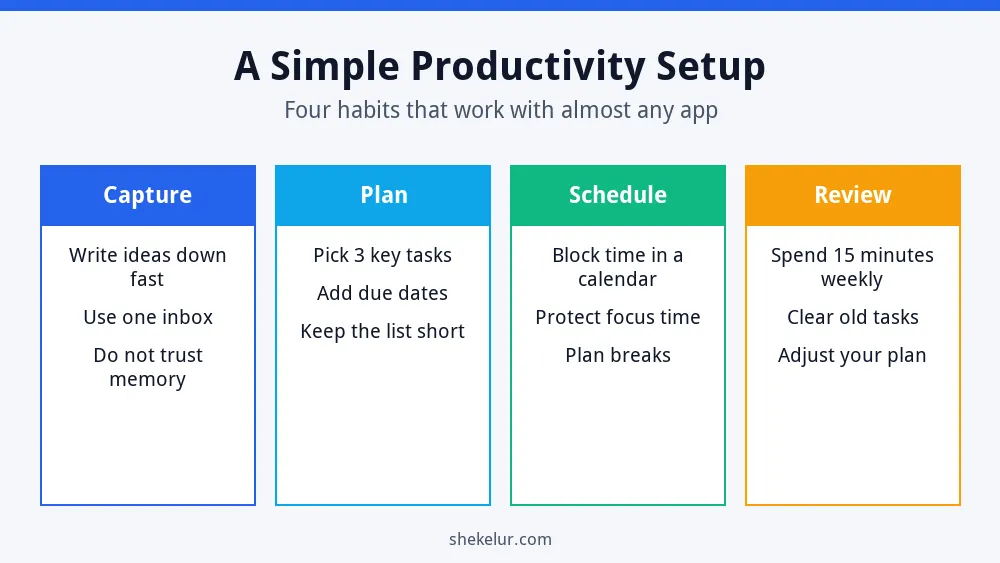
- Capture: write every idea or task in one inbox.
- Plan: choose three important tasks for the day.
- Schedule: put those tasks in your calendar.
- Review: spend fifteen minutes each week to clear old tasks and adjust your plan.
For a wider list of free options, see my guide to free marketing tools for beginners.
Common Mistakes With Productivity Apps
- Installing five apps that do the same job.
- Spending more time organizing than doing.
- Keeping a task list that is too long.
- Ignoring privacy settings and two-factor authentication.
- Switching apps every month instead of building a habit.
Final Thoughts on the Best Productivity Apps
The best productivity apps are simple enough that you will actually use them. Choose one for tasks and one for time, add a notes app only if you need it and review your setup every month. If a tool does not help after a week of honest use, change it.
Your Next Step: Set Up One App Today
Pick one app from this list and add your three most important tasks. If you would rather have a ready-made setup, you can compare independent freelancers on Fiverr for custom Notion dashboards, Trello boards or virtual assistant support. Check reviews and sample work first, and share clear instructions.
Frequently Asked Questions
What Is the Best Productivity App for Beginners?
A simple task app such as Todoist or Microsoft To Do, combined with a calendar, is enough for most beginners.
Are Free Productivity Apps Good Enough?
Usually yes. Free plans cover most personal needs, but they come with limits, so check them before you build a system around one.
How Many Productivity Apps Should I Use?
Two or three are plenty: one for tasks, one for your calendar and optionally one for notes.
Is Notion Better Than Todoist?
They serve different needs. Notion is a flexible workspace, while Todoist is a focused task manager. Choose based on whether you want a system or a simple list.
Are Productivity Apps Safe to Use?
Reputable apps are generally safe, but you should use strong passwords, turn on two-factor authentication and avoid storing sensitive data in notes.