There are thousands of apps that promise more focus, but most people only need a few. This guide shows you how to choose productivity apps that fit your daily life, so you spend less time setting up tools and more time finishing tasks.
First, you will define your real problem. Next, you will compare features, costs and privacy. Finally, you will run a simple seven-day test before you commit.
Disclosure: this article contains an affiliate link. If you buy through it, I may earn a commission at no extra cost to you. Read my affiliate disclosure for details.
Why the Right Productivity App Matters
The wrong app adds clutter. You forget to open it, you copy tasks between tools or you pay for features that you never use. The right app disappears into your routine. It helps you remember, plan and finish, and it does not demand constant attention.
How to Choose Productivity Apps: Four Questions
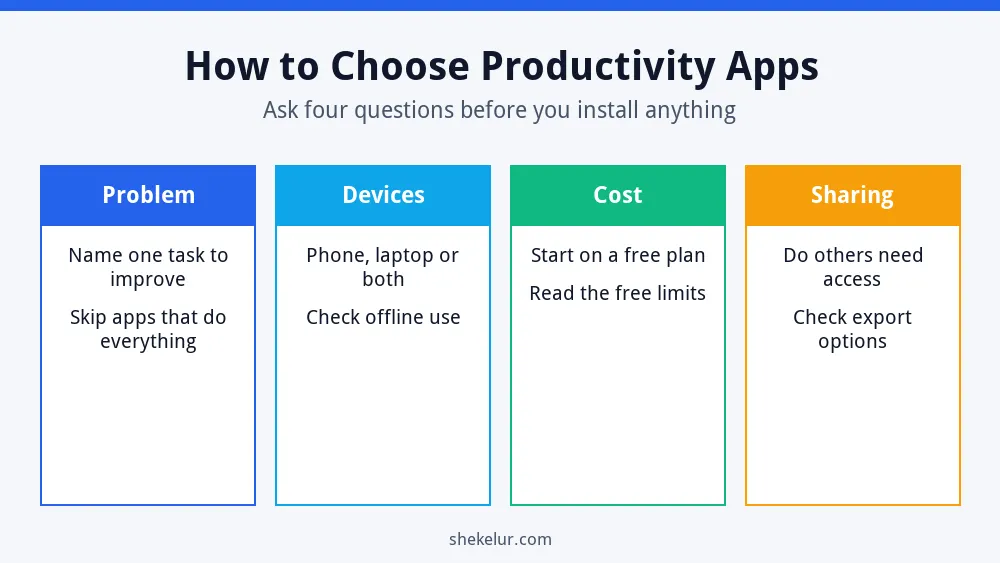
Step 1: Define the Problem You Want to Solve
Start with one specific problem, not with a list of popular apps. For example, “I forget deadlines” calls for a different tool than “my notes are scattered.” Use the table below as a starting point.
| Problem | App type | What to look for |
|---|---|---|
| Forgetting tasks | To-do list or task manager | Reminders, due dates, simple lists |
| Scattered notes | Note-taking app | Search, tags, sync across devices |
| Missed appointments | Calendar app | Alerts, shared calendars, time zones |
| Distraction | Focus timer or website blocker | Easy start, flexible sessions |
| Team projects | Project board | Assignments, comments, file sharing |
Step 2: Check the Features That Matter
- Ease of use: if you cannot add a task in a few seconds, you will stop using the app.
- Sync: your data should appear on your phone and computer.
- Search: you should be able to find old notes and tasks quickly.
- Reminders and notifications: they should help without overwhelming you.
- Export: you should be able to take your data with you if you switch apps.
- Offline access: useful when your connection is slow or unavailable.
Step 3: Compare Free and Paid Plans
Many apps offer a free plan, so start there. Read the limits before you rely on it, because they change over time. Check the number of projects or notes, the storage, the number of devices and how far back the version history goes. If you pay, choose a monthly plan first and set a reminder to cancel if the app does not help. For more free options, see my list of free marketing tools for beginners.
Step 4: Check Privacy and Security
Your tasks, notes and calendar can contain private information. Before you commit, check what the app stores, whether you can delete your data and whether it supports two-factor authentication. Turn that on wherever it is offered. The FTC also shares practical advice on privacy and security that applies to everyday tools. Also avoid storing passwords or sensitive client data in a plain notes app.
Step 5: Test the App for Seven Days
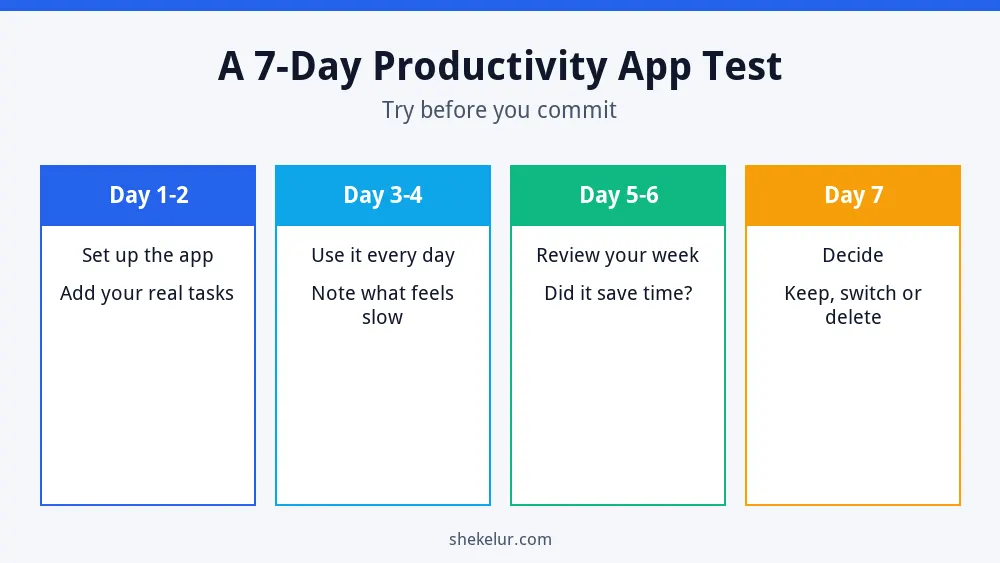
- Days 1 and 2: set up the app and add your real tasks, not sample ones.
- Days 3 and 4: use it every day and note what feels slow or annoying.
- Days 5 and 6: review your week and ask whether it saved you time.
- Day 7: decide to keep it, switch or delete it.
Match the App to Your Work Style
- You like simple lists: choose a plain task list with reminders.
- You think visually: try a board with columns, such as To Do, Doing and Done.
- You plan by time: use a calendar with time blocking.
- You collaborate often: pick a tool with comments, assignments and sharing.
- You get distracted easily: pair a task list with a focus timer.
Be Careful With AI Features
Many apps now include AI features for summaries, drafts and task suggestions. They can save time, but they can also be wrong. Check the output before you rely on it, and avoid pasting private data into any tool unless you understand how it handles that data. To learn more, read my overview of the best AI writing tools and my comparison of Claude vs ChatGPT for content writing.
Common Mistakes When You Choose Productivity Apps
- Installing many apps at once.
- Choosing an app because it is popular, not because it fits.
- Paying for an annual plan before testing.
- Copying the same task into three places.
- Never reviewing whether the app helps.
- Ignoring export and privacy settings.
How to Tell If Your App Is Working
Ask yourself three questions every month. Do I open it daily? Do I finish more of what matters? Do I feel less stressed about what I might forget? If the answer to most is no, simplify or switch.
Final Thoughts on How to Choose Productivity Apps
The best way to choose productivity apps is to start with a problem, test one tool at a time and keep only what helps. A simple system that you use beats a perfect system that you abandon.
Your Next Step: Pick One App and Test It
Choose one problem from the table and test one app this week. If you would like help building a tidy template, a simple dashboard or a custom workflow, you can compare independent freelancers on Fiverr. Read the reviews, look at past work and explain exactly what you need.
Frequently Asked Questions
How Many Productivity Apps Do I Need?
Most people do well with two or three: one for tasks, one for notes and one for your calendar. More apps often create more work.
Are Free Productivity Apps Good Enough?
Often yes. Free plans cover many daily needs. Upgrade only when you hit a limit that blocks you.
How Do I Stop Switching Between Apps?
Commit to one app for at least a month, move all of your tasks into it and review your setup once a week.
What Is the Best App for Staying Focused?
There is no single best one. A simple task list plus a timer works well for many people, so test and compare.
Is It Safe to Store Everything in One App?
It can be convenient, but keep backups and turn on two-factor authentication. Do not store passwords or highly sensitive data in a notes app.